
Intune LAPS Setup

On many Windows PCs in small companies the local administrator has the same password everywhere. Know it from one device and you are in on all of them. Windows LAPS fixes this: every device gets its own password that changes regularly and is stored in Entra ID. This is how I set it up with Intune.
First: enable LAPS in the tenant
This step is easy to miss: in the Entra admin center under Devices → Device settings, “Enable Microsoft Entra Local Administrator Password Solution (LAPS)” must be set to Yes. Otherwise Intune deploys the policy, but devices cannot store their password in Entra ID and all you get is an error in the event log.
I also check whether old LAPS settings via GPO or legacy Microsoft LAPS (MSI) are still on the devices. Two sources managing the same account end in passwords nobody knows.
The policy
In Intune under Endpoint security → Account protection → Create policy, platform Windows, profile “Local admin password solution (Windows LAPS)”. My settings:
| Setting | Value | Why |
|---|---|---|
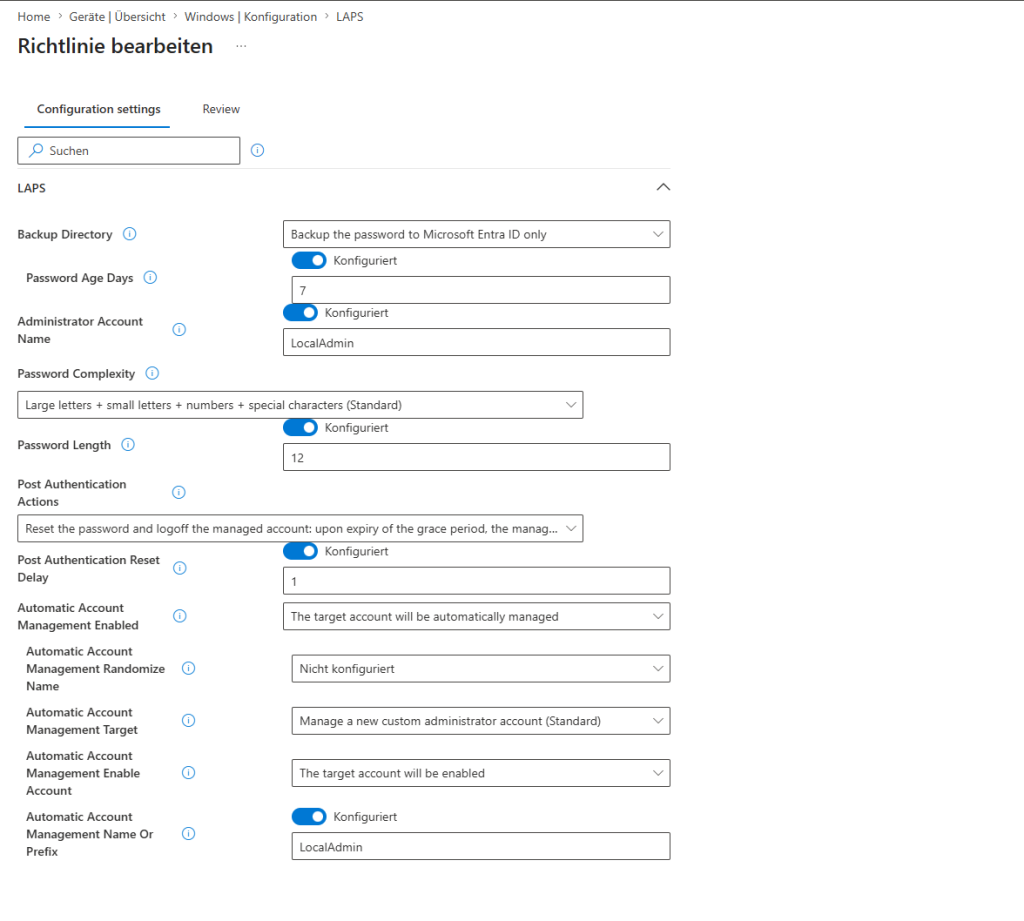
| Backup directory | Microsoft Entra ID only (still labelled “Azure AD” in places) | Cloud-only devices, no on-prem AD |
| Password age | 7 days | Short enough that a retrieved password quickly becomes useless |
| Password complexity | Upper case, lower case, numbers, special characters | Default |
| Password length | 12 | The default is 14. Today I would use 14 or more, nobody types it by hand anyway |
| Post-authentication action | Reset password and log off the managed account | Whoever used the password gets signed out afterwards and the password is burned |
| Post-authentication reset delay | 1 (hour) | One hour is enough for a support session. The value is in hours, not days |
Automatic account management
You used to have to create the local admin account yourself, for example with a script. Since Windows 11 24H2, LAPS can create and manage the account on its own. I let it create and enable a new account called LocalAdmin, without a random suffix. The built-in Administrator stays disabled.
- Automatic account management enabled: Yes
- Target: manage a new custom administrator account
- Name or prefix:
LocalAdmin - Random name: No
- Enable account: Yes
These settings do nothing on older Windows versions. There, the account still has to exist beforehand.
This is what the profile looks like in the Intune admin center:
Retrieving the password
In the Intune admin center under Devices → select device → Local admin password. Only roles with the right permission can read it, for example Intune Administrator or Cloud Device Administrator. I deliberately don’t give that to every helpdesk account. If you need it often, PowerShell works too:
Connect-MgGraph -Scopes 'Device.Read.All','DeviceLocalCredential.Read.All'
Get-LapsAADPassword -DeviceIds 'PC-NAME' -IncludePasswords -AsPlainText
After signing in with the password, the policy action kicks in: after one hour the account is signed out and the password is reset.
Checking that it works
On the device, the event log under Applications and Services Logs → Microsoft → Windows → LAPS → Operational shows when the password was last set and whether the backup succeeded. If there are errors, it is almost always the tenant switch from above or a second LAPS source.